
SUBSCRIPTION FAQs
Below are some frequently asked questions and answers on how to change and edit your subscription box with Genesis Coffee Supply.
How to Edit an Existing Subscription
To edit your subscription, first login to My Account with your username and password.
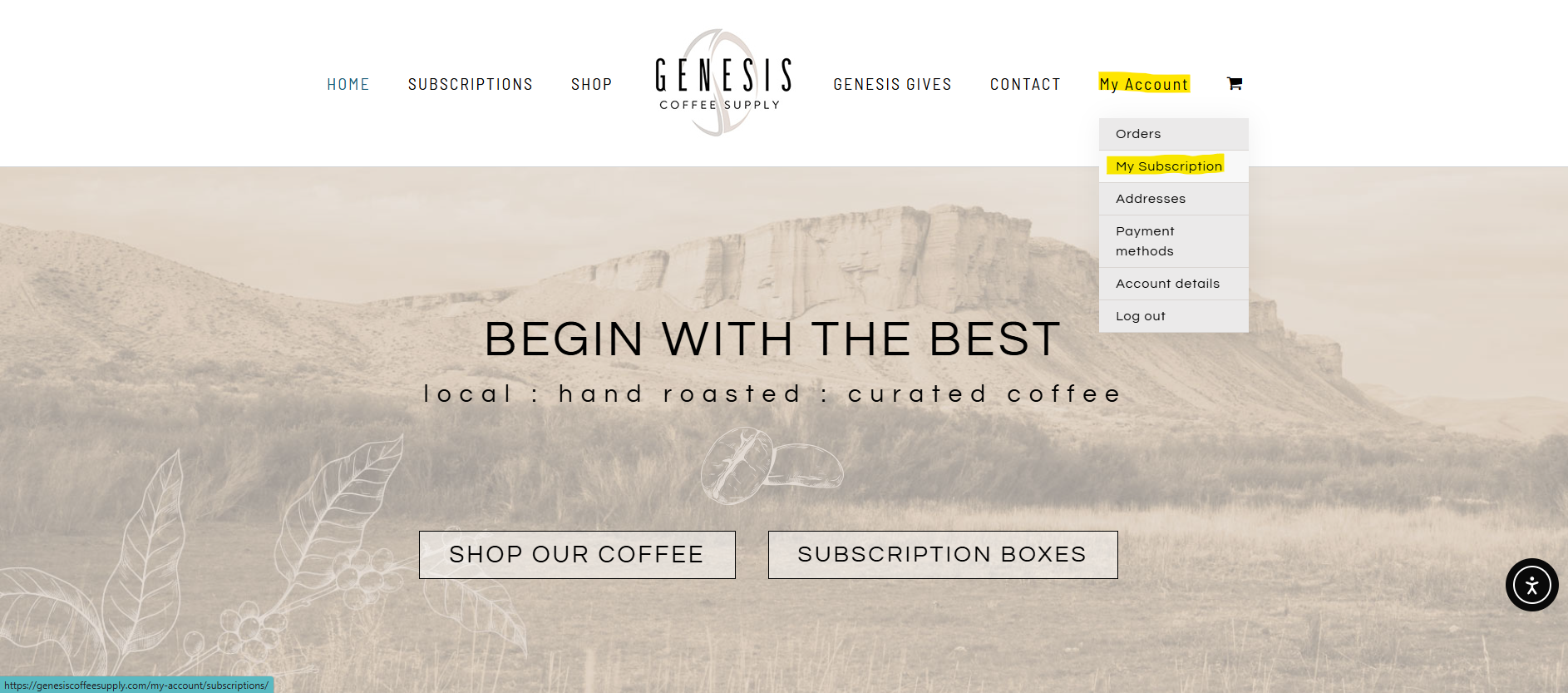
Next, click on My Account > My Subscriptions:
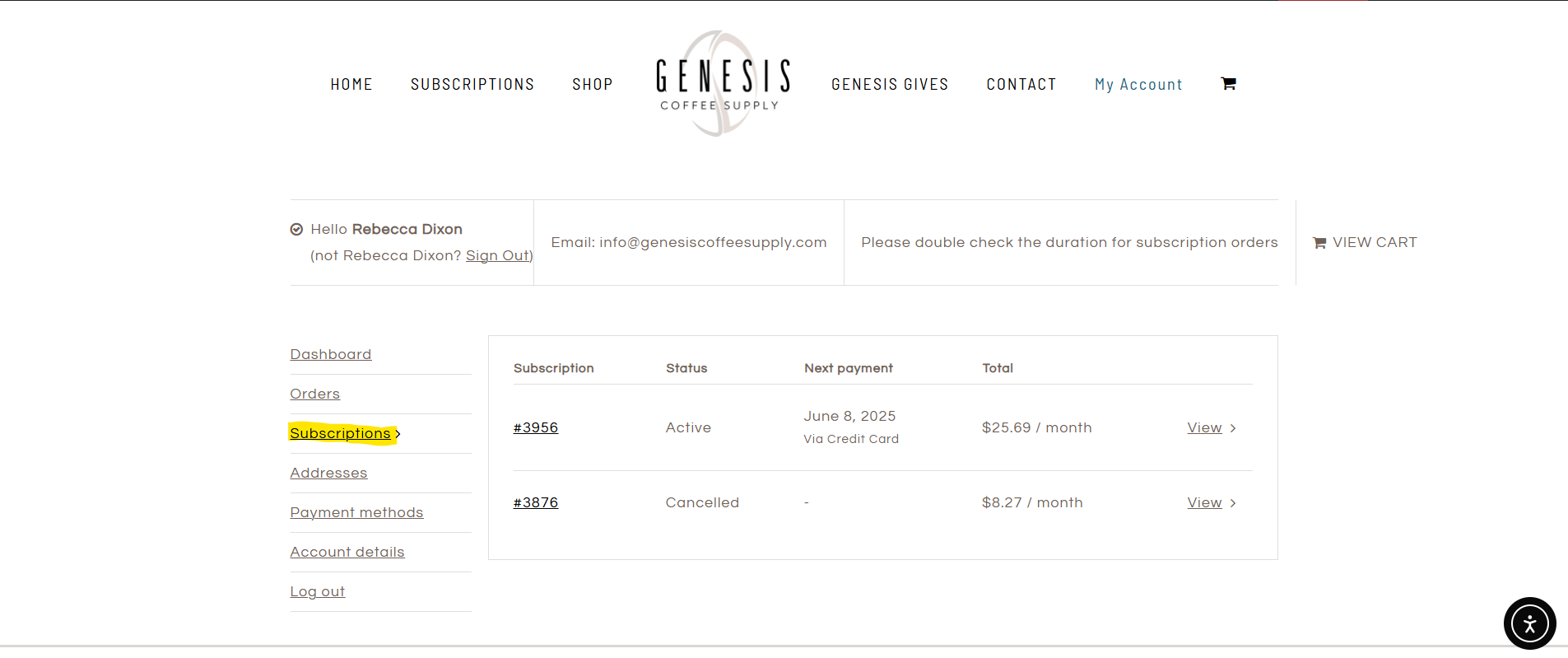
In the Subscriptions portion of the dashboard you can view your active and cancelled subscriptions.
To Edit an active subscription click on the active subscription order number or click the View link
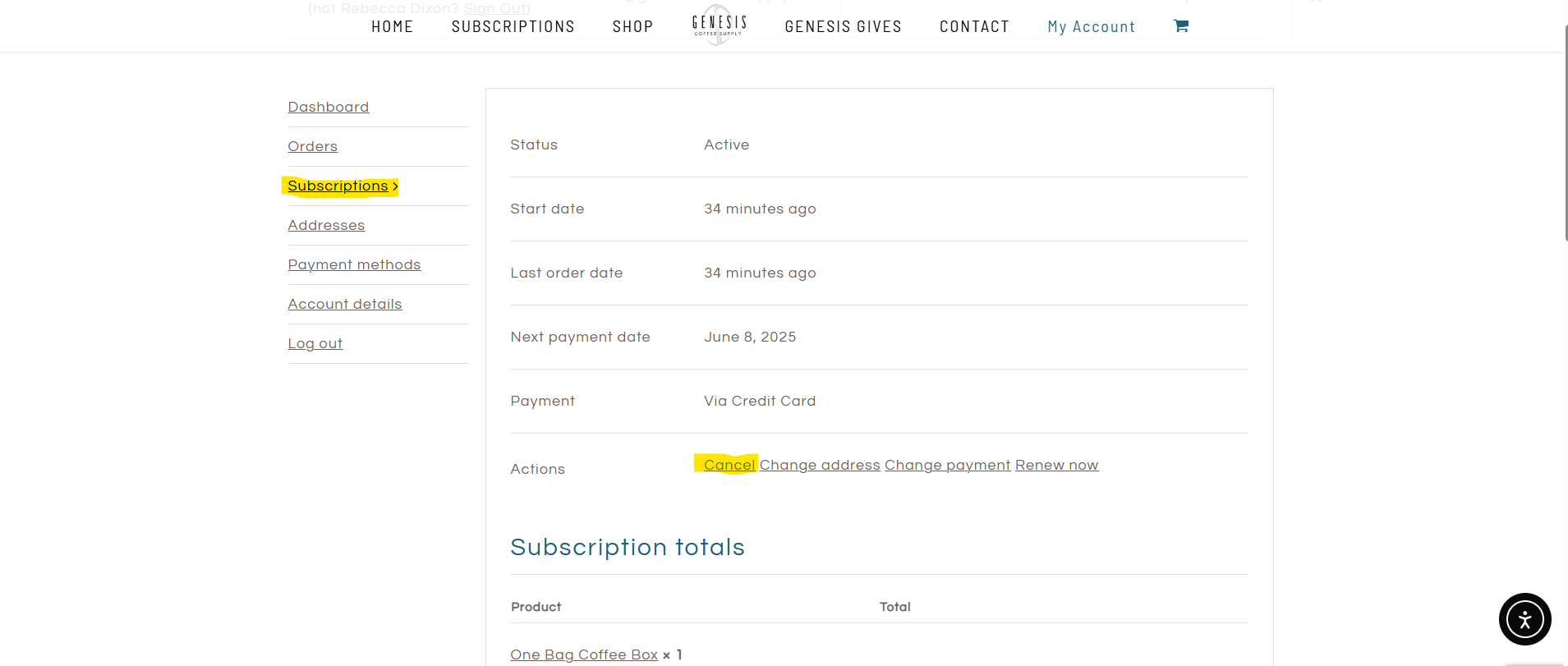
Under the Actions section you can:
- Cancel your subscription
- Change your shipping address
- Change your subscription payment method
- Renew now to receive an immediate shipment of your current subscription instead of waiting for the next subscription cycle.
You can also Edit Your subscription using the Edit This Subscription link
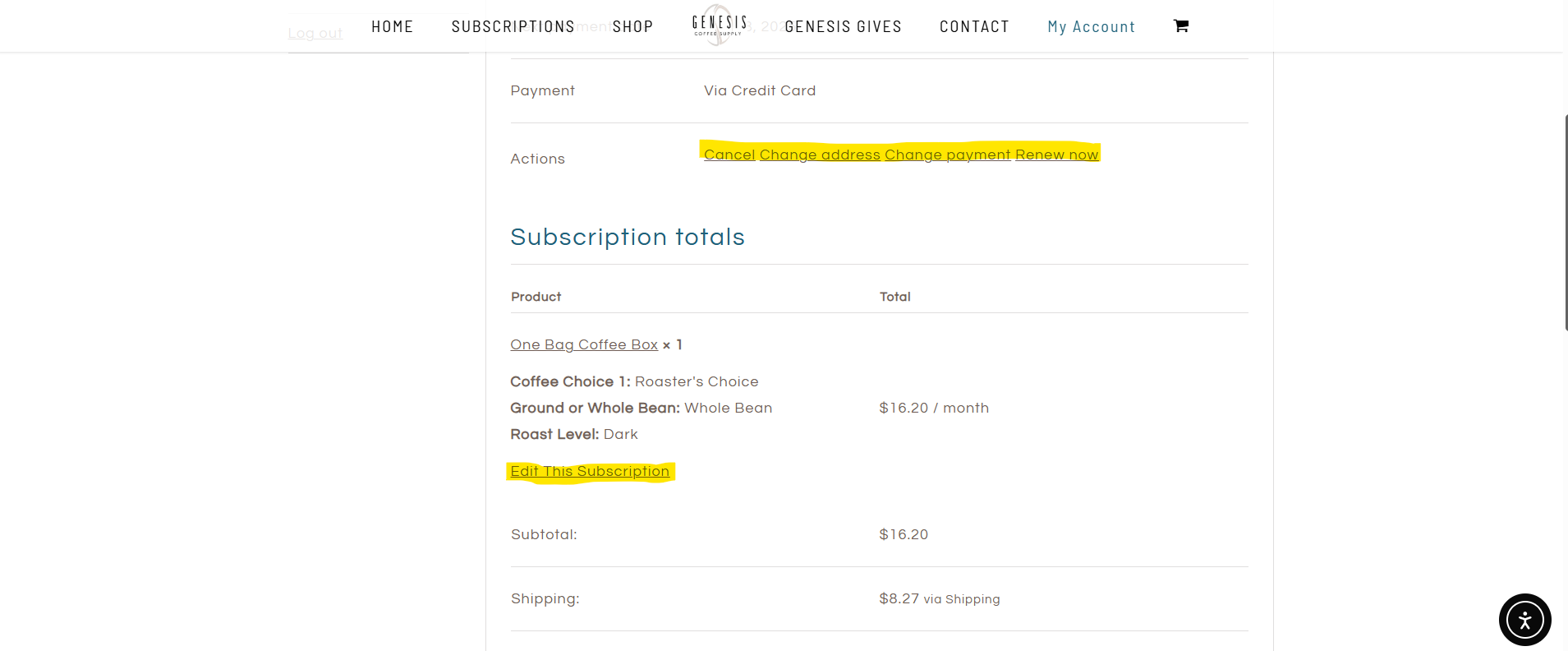
Using the Edit This Subscription link will allow you to change the coffee choices, bean options roast level, and shipping frequency of your current subscription box. Once you have made your desired click the SWITCH SUBSCRIPTION button to update your preferences.
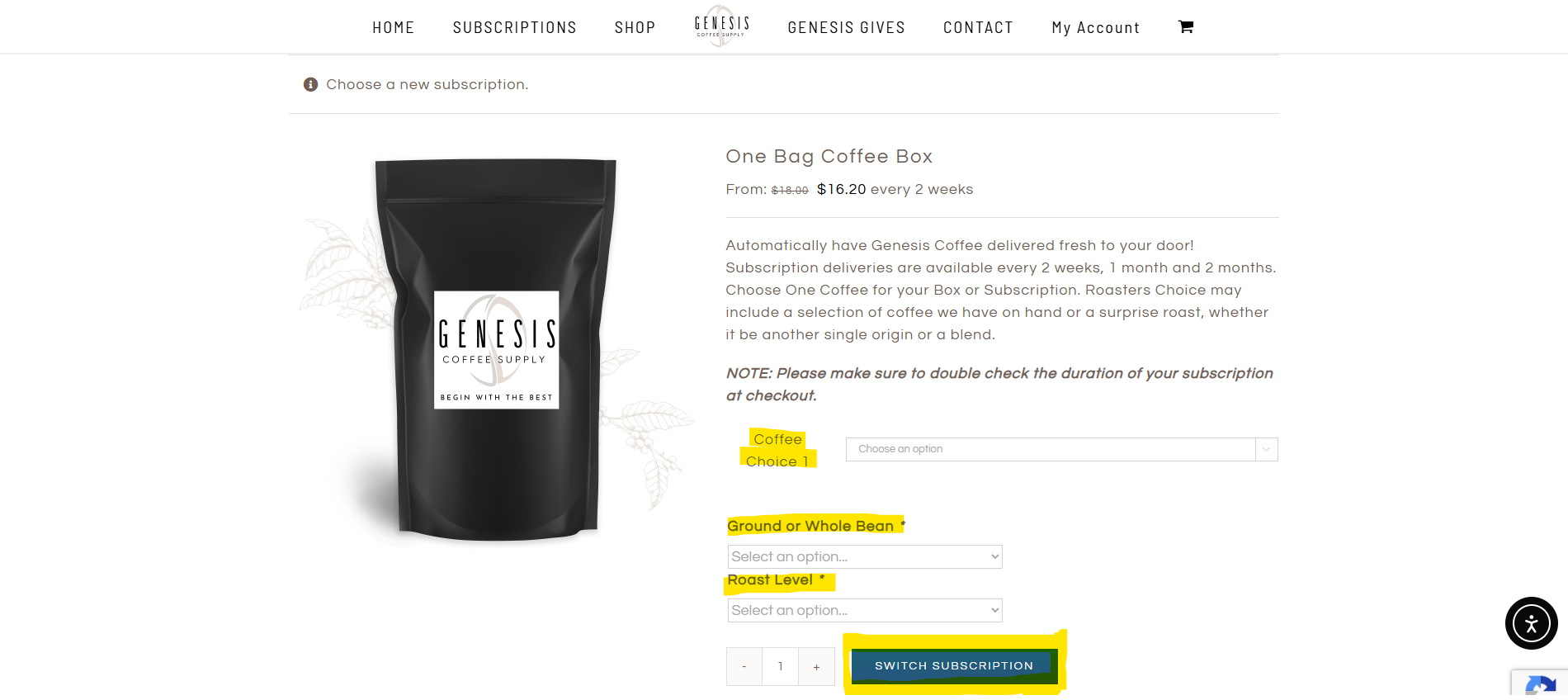
Please note: you can only change the coffee options within your current subscription box type. If you wish to change the number of bags of coffee that you are receiving in your subscription box you will need to cancel the current subscription and enroll in a new subscription for your desired number of coffee bags.
Changing Your Subscription Box
If you wish to change the number of bags of coffee that you are receiving in your subscription box you will need to cancel the current subscription and enroll in a new subscription for your desired number of coffee bags.
To cancel your current subscription go to My Account > Subscriptions and then click on the Cancel button under the Actions section. That subscription will be cancelled and you can place new subscription order for your desired subscription box and frequency.
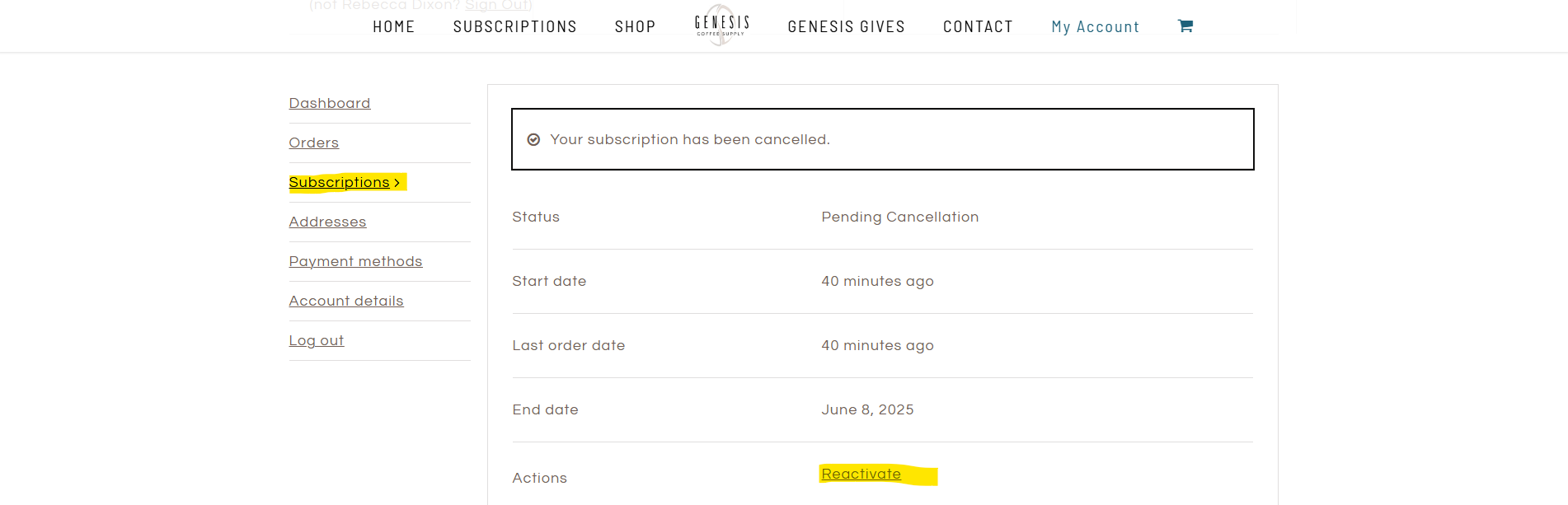
Reactivating a Subscription
To reactivate a cancelled subscription go to My Account > Subscriptions and then click on the Reactivate link to activate a cancelled subscription box.
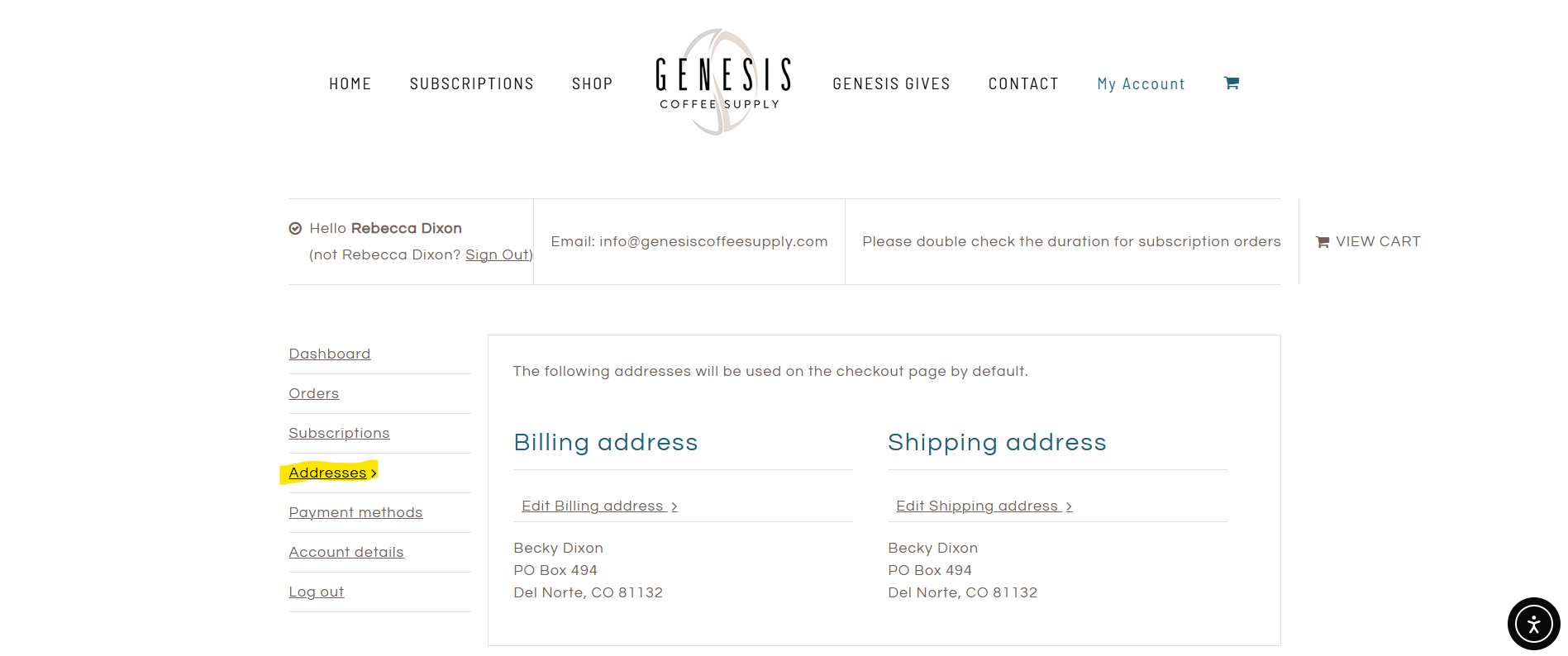
Updating Billing or Shipping Address
To update your billing or shipping address go to My Account > Addresses and click on the Edit Billing Address or Edit Shipping address to make your updates.
Updating Payment Method
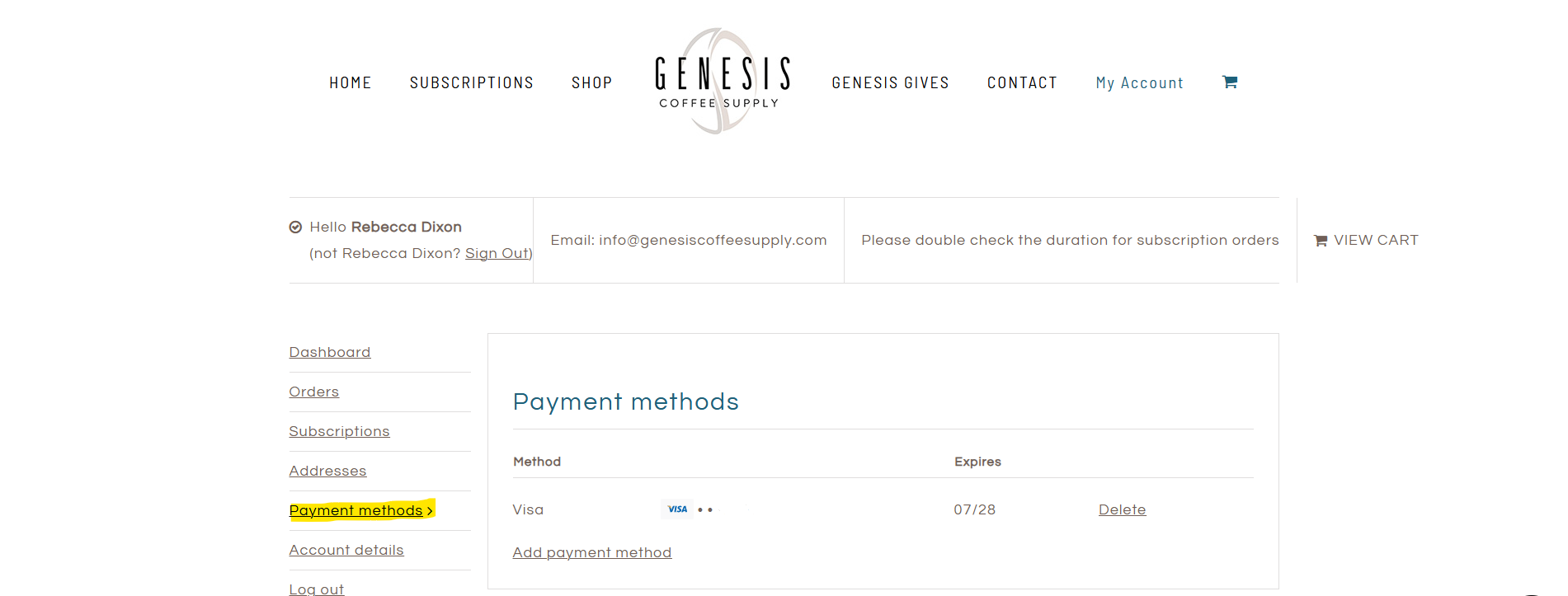
To update your payment method information go to My Account > Payment methods and click on Add Payment Method to add a new credit card. You can also delete a stored credit card by clicking the Delete link next to the desired credit card.
Updating Account Information
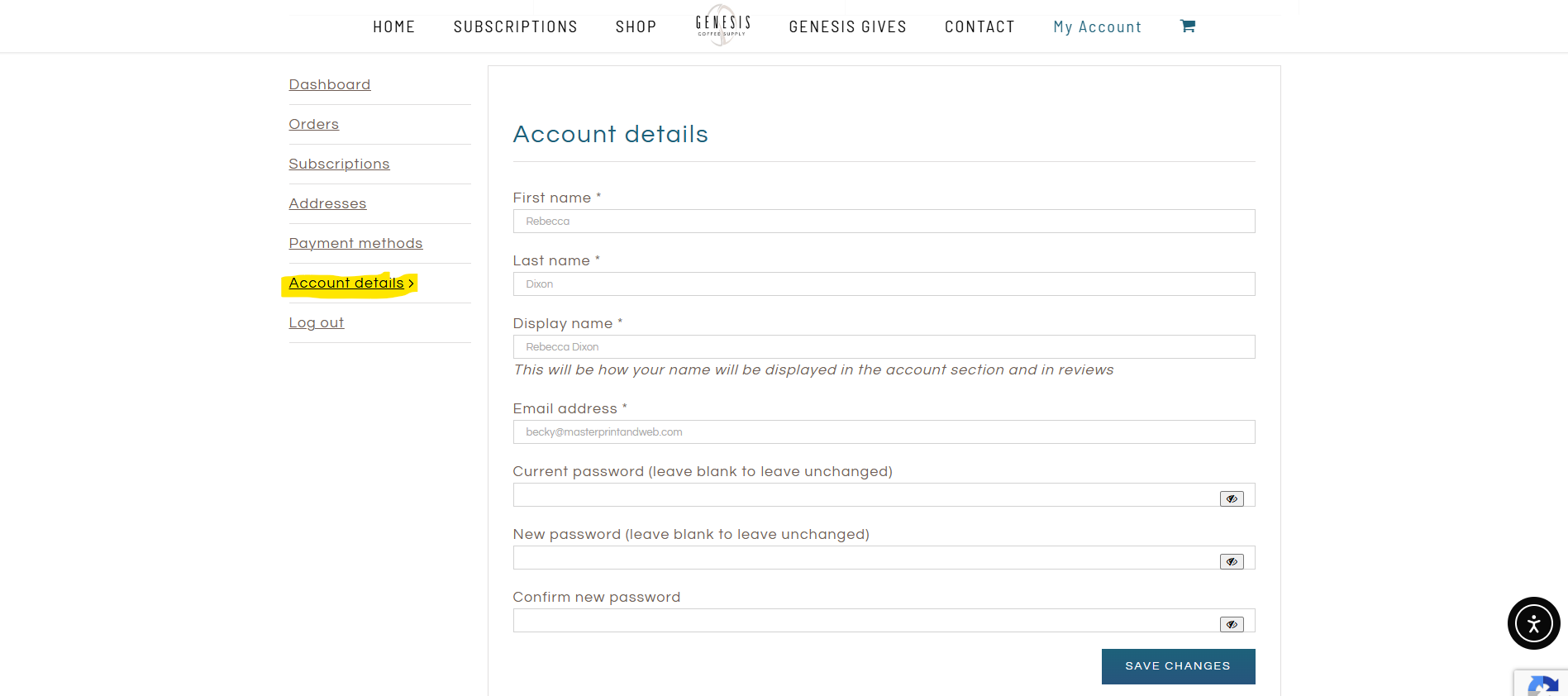
To update account details such as name, email address or password, go to My Account > Account details and make the desired updates. Click on the SAVE CHANGES button to save your account updates.
Viewing Previous Orders
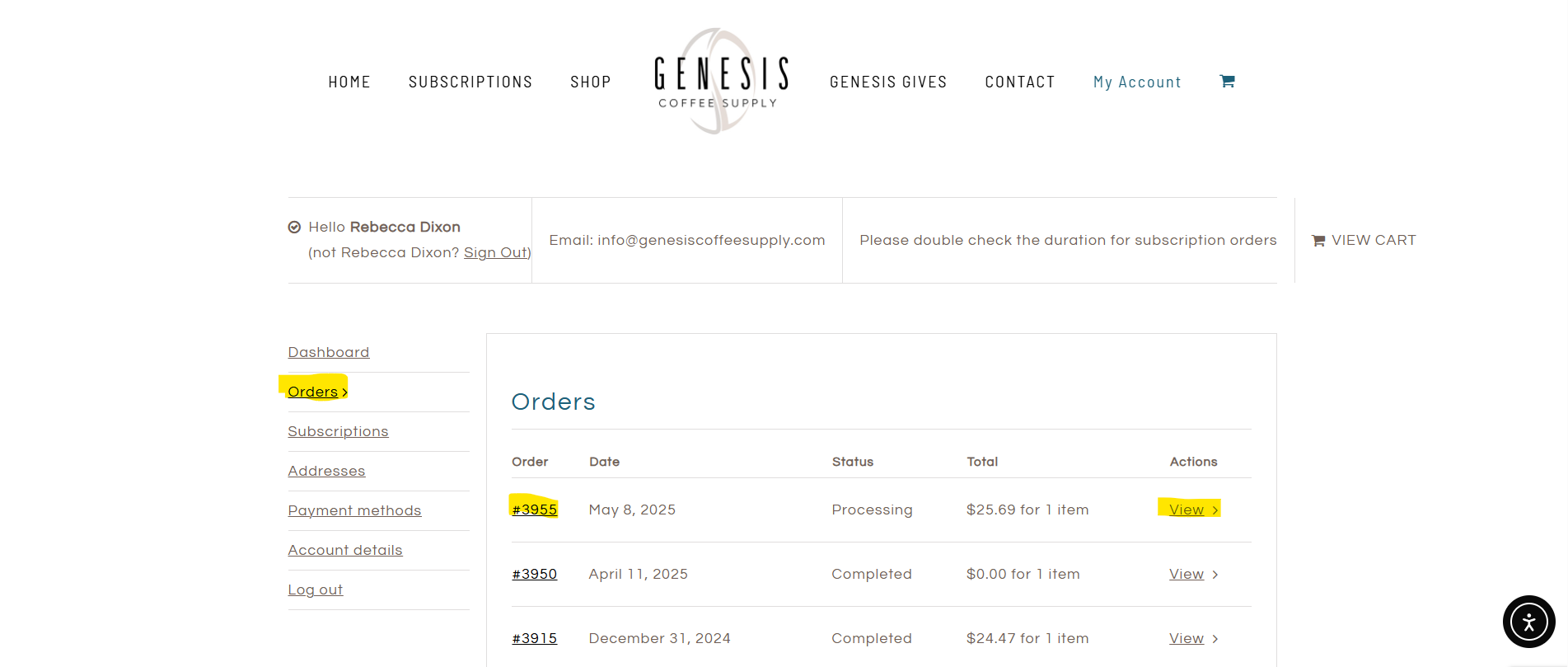
To view your order history, go to My Account > Orders and click on either the order # or the View link next to the desired order.